Setting up your own Git server?
What to watch out for
My hard drive holds projects from twenty years. As a RAR archive, as a ZIP with a date in its name, as a folder somebody backed up before switching machines.
Some of it is client work, and that is exactly what should not sit with just any provider. The rest are my own tools, which are nobody else’s business.
A Git server of your own solves both. This post describes how I went about it and which traps I stepped into on the way.
Why self-host at all?
The obvious route would be a private repository with one of the big providers. For your own tinkering that is perfectly fine.
Client code is a different matter. Who owns the code, who may see it, and what does the contract say about it? You do not answer those questions by pointing at a checkbox labelled “private”. A server in your own network makes the answer simple.
There is a practical point as well: an archive should still be readable in ten years. A Git repository is a good format for that, because it works on its own and needs no running service.
Why Forgejo and not GitLab?
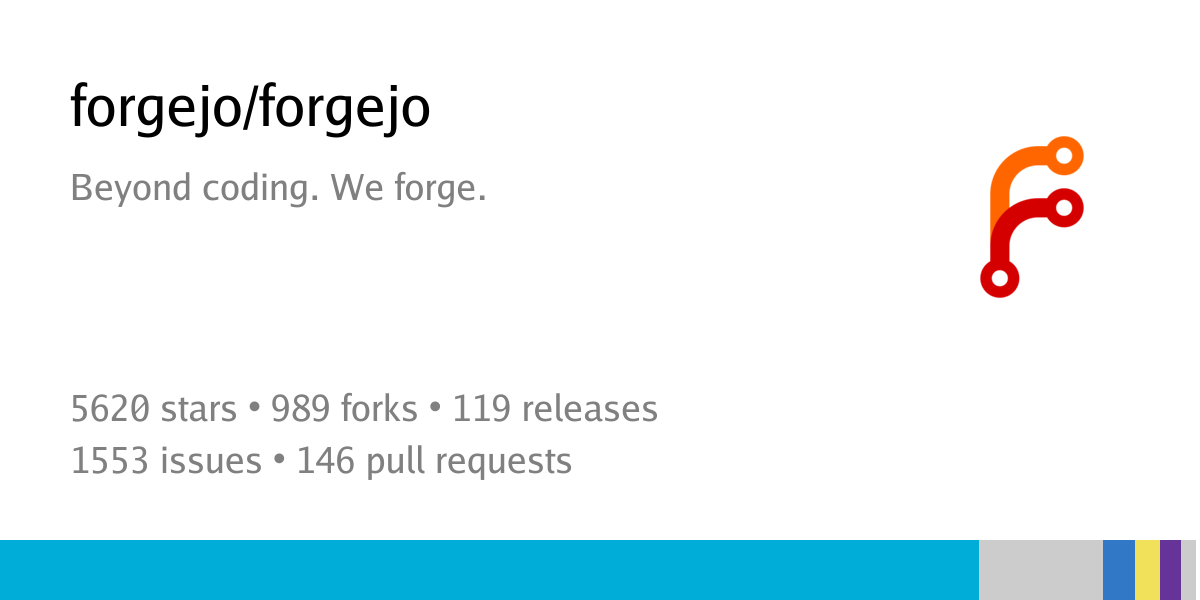
Forgejo is a hard fork of Gitea, backed by Codeberg e.V. and licensed under GPLv3. It runs as a single binary with SQLite. On my local Linux server, which is up around the clock, the container takes about 106 MB of memory.
GitLab can do considerably more, and resources would not have been the problem on that machine either. Three points still spoke against it, and the first one is the most important.
The backup leaves out the configuration. The GitLab documentation says so literally: “The backup Rake task GitLab provides does not store your configuration files.” If you only have the backup but not /etc/gitlab/gitlab-secrets.json, you will not get the encrypted database fields back on restore. You notice that at the moment it is too late (source: GitLab documentation, Back up GitLab).
With Forgejo, forgejo dump produces one archive containing repositories, database and configuration in a single piece.
GitLab prescribes the upgrade path. You cannot jump as far as you like, you have to pass through specific intermediate versions. For an archive you do not touch for months that means: run three upgrade stages first, then look at one file.
And the third point: there is no company behind Forgejo, but an association, Codeberg e.V. There is no paid enterprise edition that individual features could migrate into at some point. For something that is meant to last twenty years, I find that reassuring.
Organizations are the structure, not Projects
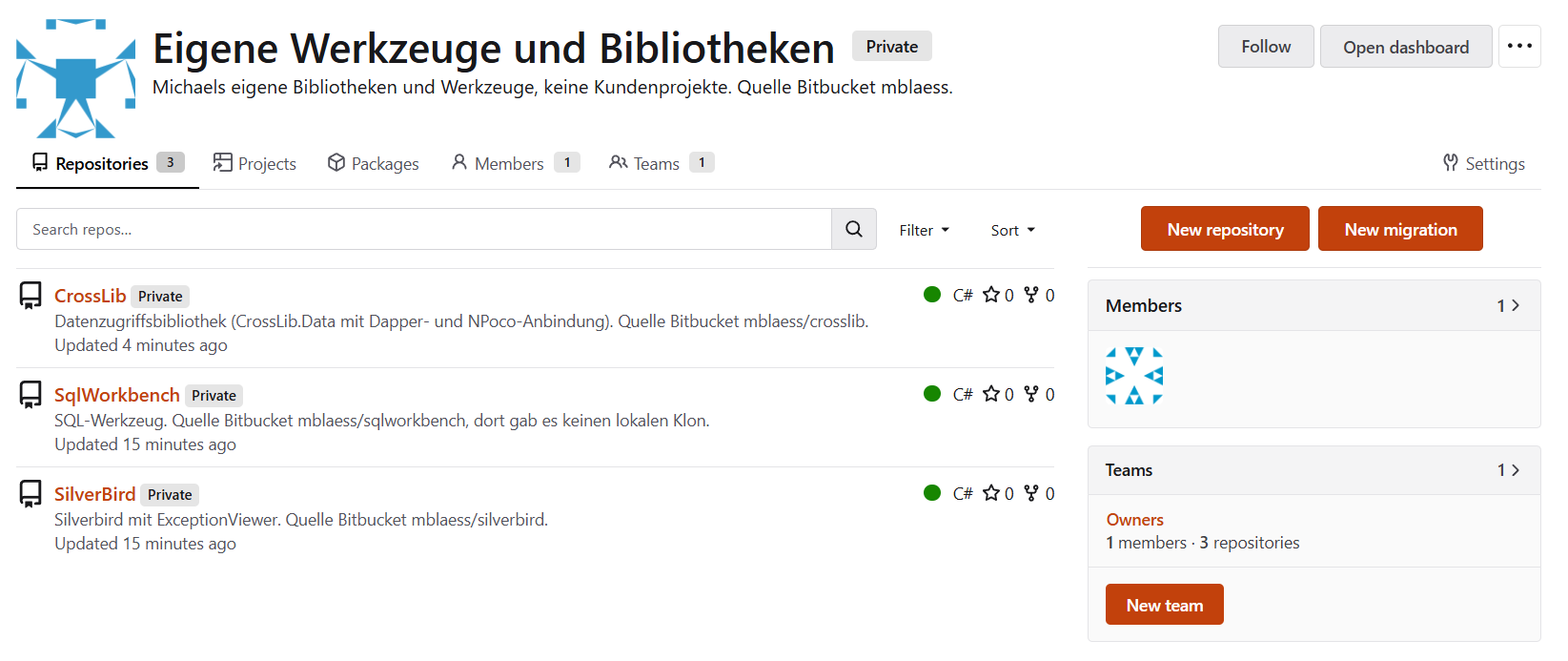
A term I tripped over: what Forgejo calls “Projects” is something other than the name suggests. The documentation puts it in one sentence: “A project is a kanban board to organize issues.” The structure you are looking for, by client or by topic, is the organization (source: Forgejo documentation, Projects). One organization per client, any number of repositories below it, each with its own visibility.
That is quickly set up and carries the whole filing system from then on.
Three traps during the import
The real effort was not the server but getting the old states into it. Three things would have silently swallowed data in the process.
git push --all does not transfer all branches
One archive contained a complete .git, meaning the real history instead of a snapshot. It held 38 branches.
Five of them were checked out locally. The other 33 existed only as refs/remotes/origin/*, because they had never been created locally back then. git push --all leaves exactly those behind, because it transfers refs/heads.
So if you move an old repository and take --all to mean complete, you lose every branch the developer at the time never checked out. Feature branches with half-finished work are precisely that kind of candidate.
The way around it is to create a local head for every origin/X before pushing. And a second look pays off here: in the same repository the local master was 55 commits behind its counterpart on the server. The working copy simply had not been up to date when it was archived.
git bundle verify does not prove that you can clone
For the backup, my script creates a git bundle per repository. That is a single file you can clone from directly, and in ten years it will need nothing but git.
Whether a bundle is intact is checked by git bundle verify. I very nearly got used to relying on that.
The test that found the error was a real clone. Result: empty working directory, zero commits. The message read remote HEAD refers to nonexistent ref, unable to checkout.
The cause is unspectacular and still hits everyone who backs up bare repositories: git bundle create --all does not include HEAD. If HEAD points to a branch that does not exist, the bundle is formally valid and practically worthless. The right form is --all HEAD, and only if HEAD can be resolved.
The lesson is bigger than that one command: an integrity check is not a usability check. A backup only counts as verified once something has been restored from it.
A .gitignore pattern with a slash is anchored
While backing up an old working copy I wanted to leave out build output and wrote bin/Debug/ into the .gitignore.
It matched nothing. A pattern that contains a slash inside it is relative to the root directory of the repository. So bin/Debug/ matches /bin/Debug/, but not PowerShell/bin/Debug/.
I only noticed because the number in the planned commit did not fit the amount of data: 337 files at 249 MB. With the directory-wide forms bin/ and obj/ it was 166 files and 113 MB. The cross-check for this is git check-ignore -v <path>, which tells you whether a rule applies and which one.
The second half of the same matter belongs here too: .gitignore has no effect at all on files that are already tracked. In that same repository, around a thousand build files had been in the index since 2017 and kept coming along.
The trap that cost me the most
This one has nothing to do with git, and it will probably hit anyone who runs several services on one machine.
My server runs several applications under the same hostname, each on its own port. After the installation, Forgejo answered every login attempt with an internal server error.
The log said:
RegenerateSession: regenerate session: invalid 'sid': eyJfZnJlc2giOmZhbHNlLCJjc3JmX3Rva2VuIjoi... 131 != 16The value is base64-encoded JSON with the fields _fresh and csrf_token. That is the signature of a Flask application, so of Python, not of Forgejo, which is written in Go.
The explanation is in RFC 6265, section 8.5, and it is unambiguous: “Cookies do not provide isolation by port. If a cookie is readable by a service running on one port, the cookie is also readable by a service running on another port of the same server.” All services under the same hostname therefore share one namespace, no matter which port they listen on. Another application on the machine set a cookie named session, the browser dutifully sent it along, and Forgejo read it as its own session ID.
I proved it with a cross-check that could have failed: the same login without the foreign cookie returned HTTP 303, the redirect after a successful login. With the cookie it returned HTTP 500. After setting a cookie name of its own, both cases returned 303.
The error works in both directions. Forgejo’s own cookie would have overwritten the login of the other application.
So if you run several services under one hostname, give each of them a unique cookie name. For Forgejo that is FORGEJO__session__COOKIE_NAME.
Two small things that still matter
The default branch is chosen alphabetically. After the first push, my default was a branch a colleague had named after himself years ago. Forgejo takes the alphabetically first one if nothing else is set. That costs one call and is right from then on.
The commit date belongs to the archive, not to the day of the import. If you bring in an old state as a snapshot, set GIT_AUTHOR_DATE and GIT_COMMITTER_DATE to the date of the archive. Otherwise the history claims the code was written this year. And for an older file added after the fact, the author date takes the time it was created and the commit date the time it was archived. That is exactly what git has the two fields for.
What I learned from it
The server was set up in one evening. The time went into the questions you do not ask yourself beforehand.
The most important one: how do I know the backup holds? A check command that reports “valid” does not answer it. In my case only the attempt to actually clone from the backup revealed the error.
That applies beyond git. Every backup nothing has ever been restored from is an assumption. If you create one, walk the reverse path once before you rely on it.
Sources: Forgejo · Forgejo documentation on configuration · GitLab documentation, Back up GitLab · RFC 6265, section 8.5 on cookies and ports · git-bundle · gitignore format

Planning a similar project?
I support you from consulting and planning through implementation to quality assurance.